Windows Installation
Install EZFN on your Windows PC.
Requirements
- A working internet connection
- At least 50GB of storage, depending on the Fortnite season
- Your PC password
If you want to install Fortnite on iOS with the help of a PC, this is not what you’re looking for! Go to iOS Installation (PC Required) for more details
Video tutorial
Getting started
To play EZFN, first install our launcher: click Download Launcher below and follow the installer’s steps.
Logging in
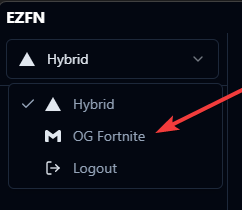
In the launcher, click the dropdown in the top left and select “OG Fortnite”.
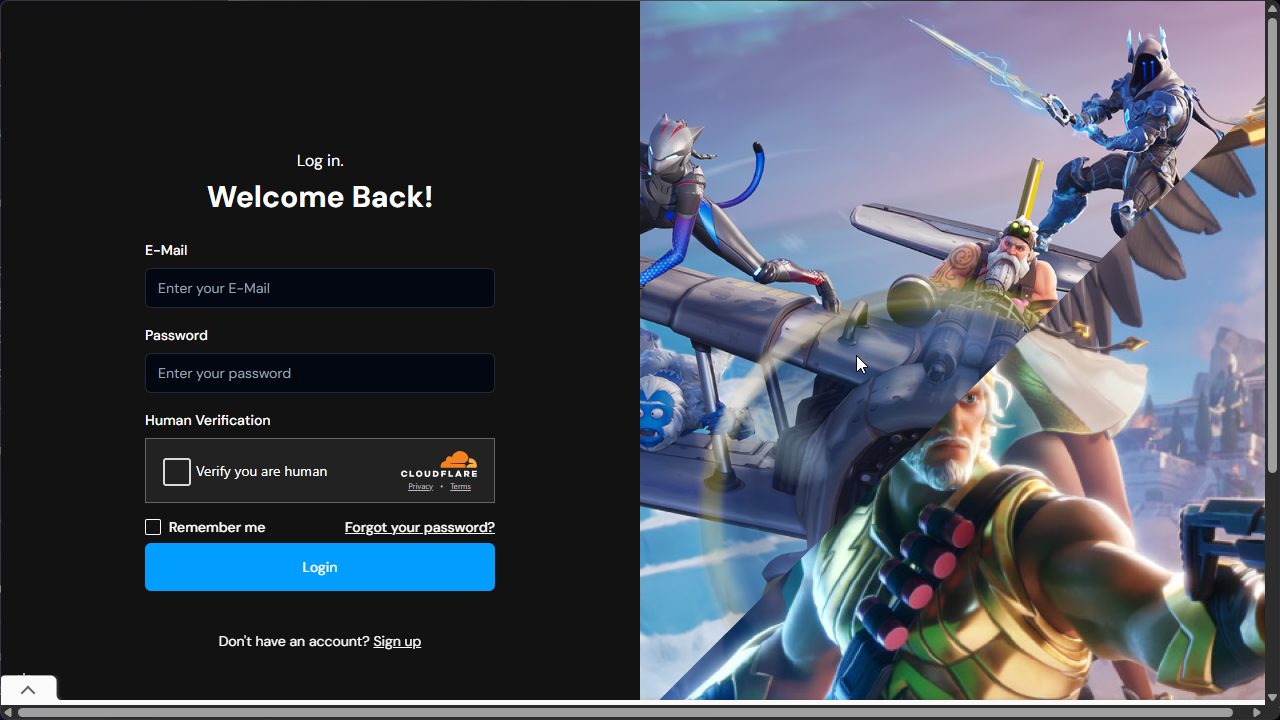
You will be prompted to log in or register with your email.
Downloading Fortnite
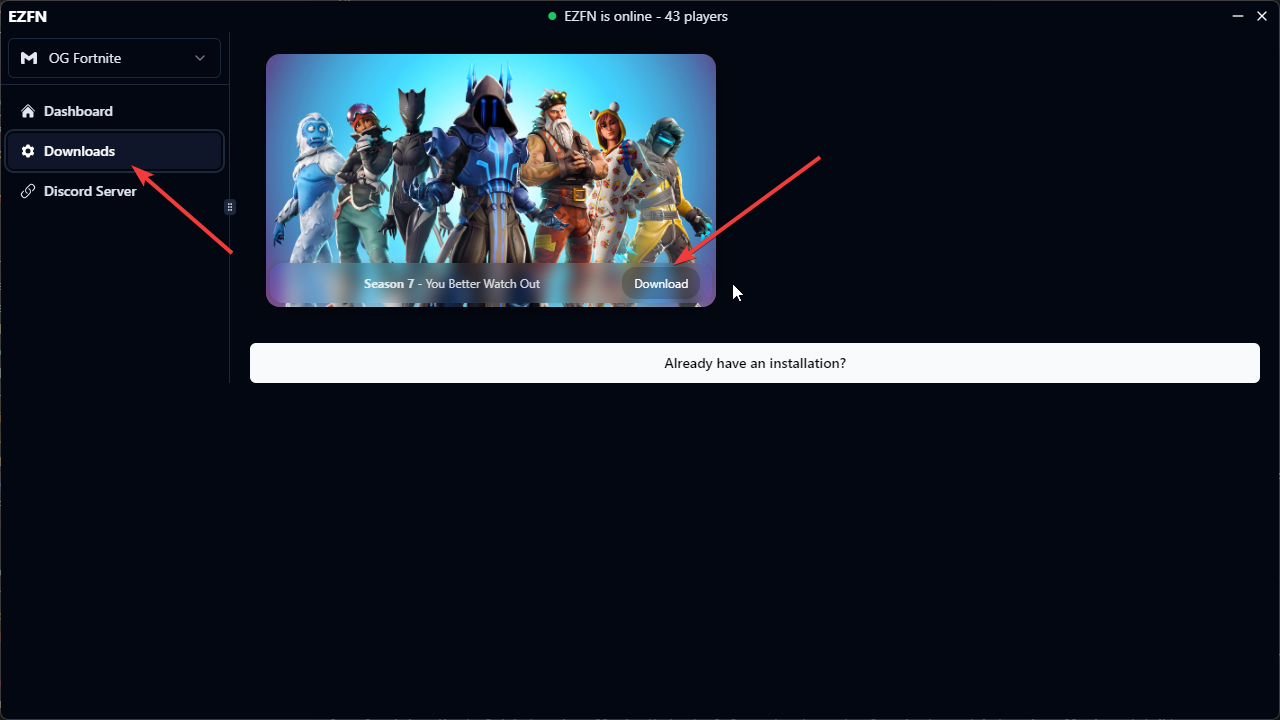
Next, download Fortnite.
Click the Download tab, then click “Download” next to the Fortnite version you want to play.
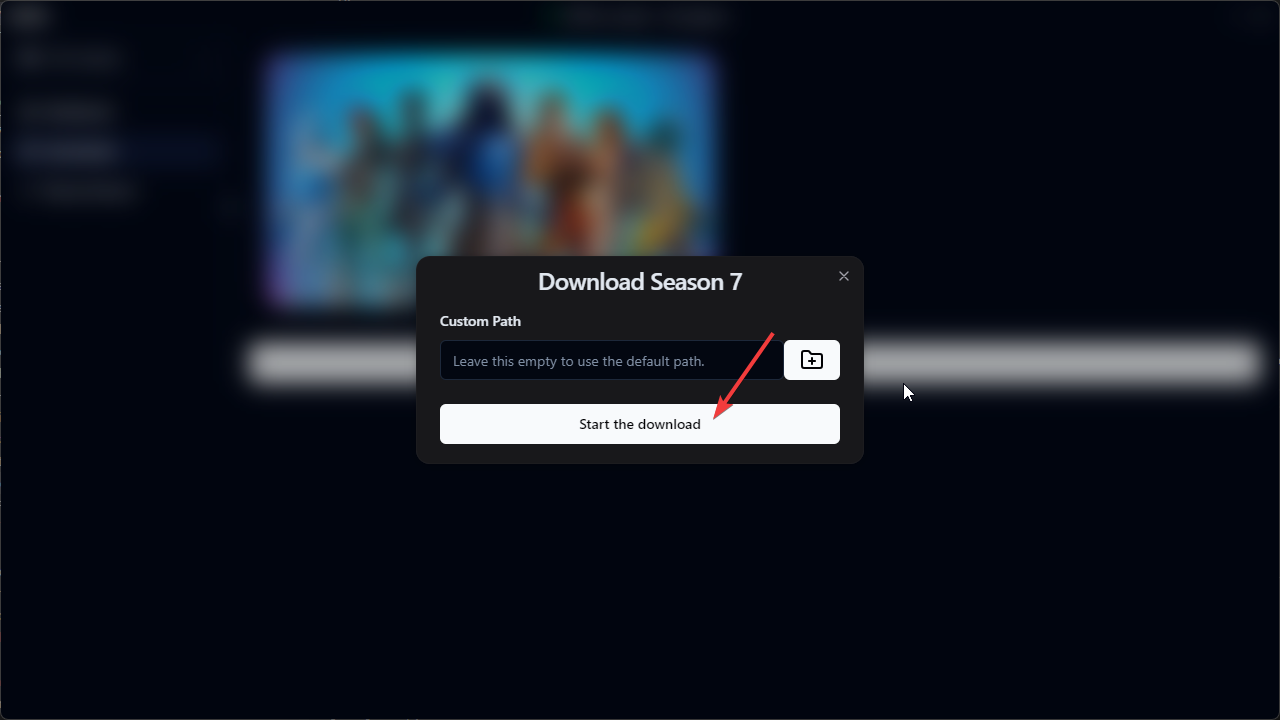
You can leave the default settings unless you want to install Fortnite on another disk (to do so, click the folder icon and select the folder you want to use)
Click “Start the Download” and wait for it to complete (it might take some time depending on your internet speed).
That’s it! You can now go back to the Dashboard and click “Play” to enjoy EZFN <3
Issues
- My browser blocks the download saying it’s a virus
EZFN is not a virus, but because we replace some Fortnite files, some antivirus tools flag us.
To fix this, just right click on the download text and select “Save link as”
- My game crashes when the loading screen is about to end
This means that your files are corrupted. To solve this, on the launcher Dashboard, click the three dots (⋯) → Verify Files and wait for the process to finish.
- I get an Unreal Engine 4 crash
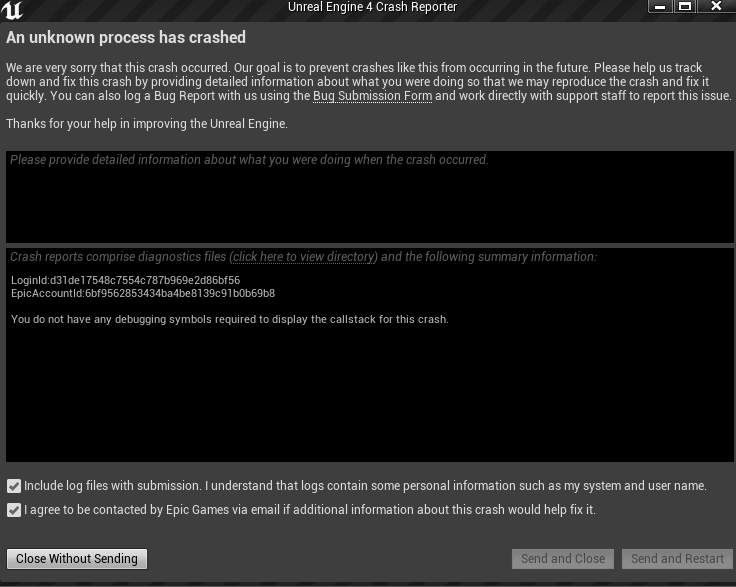
This likely means that your files are corrupted. To solve this, on the launcher Dashboard, click the three dots (⋯) → Verify Files and wait for the process to finish.
- I can’t hear any audio when I join a game!
You likely have Visualize Sound Effects enabled: in Chapter 2 Season 2, turning it on disabled normal game audio. To fix this, turn off Visualize Sound Effects in Audio settings.
- I can’t hear any audio even in the lobby!
To fix this, download and install DirectX Web
- I get an anti-cheat error even though I’m not cheating!
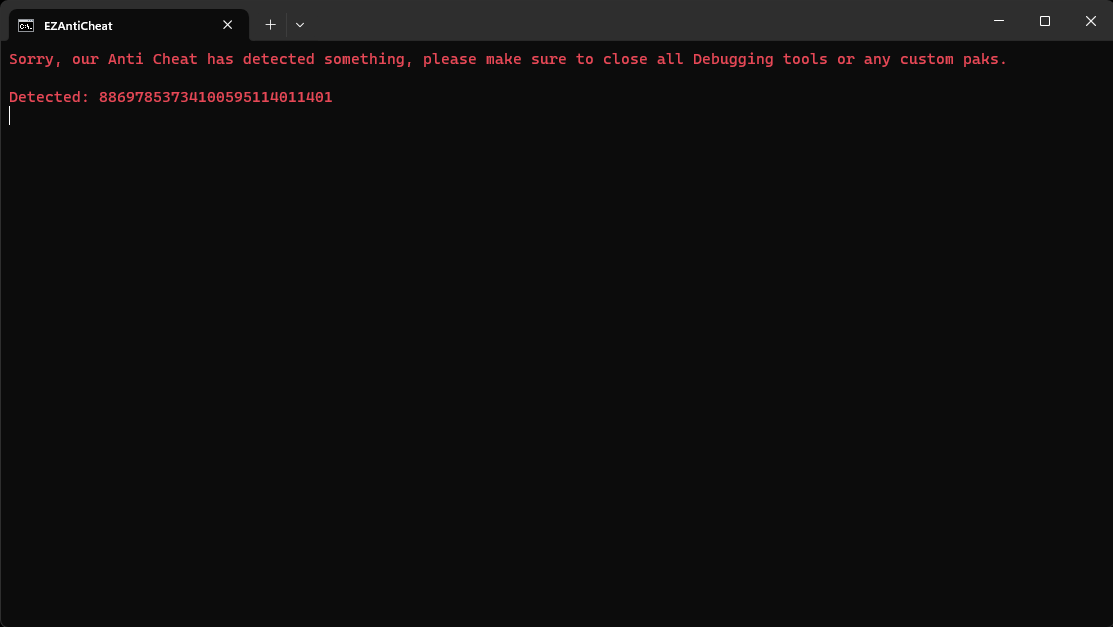
Anti-cheat errors can happen for many reasons. Try these steps before asking for support in the Discord server:
- Close applications that offer overlay features such as Overwolf
- If you are using OBS, avoid using “Game Capture” as the capture mode for Fortnite
- Close as many apps as you can, one might be interfering with the game unintentionally
- In the launcher, click the three dots (⋯) → Verify Files
If none of these solutions work, ask in the #support channel on Discord and include the “Detected” numbers in your message.
Need more help?
Join the Discord Server for assistance.