Your browser can't install EZFN
iOS only lets Safari and Chrome download configuration profiles — this browser can't. Copy the link below, then open it in Safari or Chrome to install EZFN.
Part 1 — Install the EZFN launcher
Download the EZFN profile
Tap the download button below. When iOS asks for permission, tap “Allow”, then “Close”.
Download EZFN Profile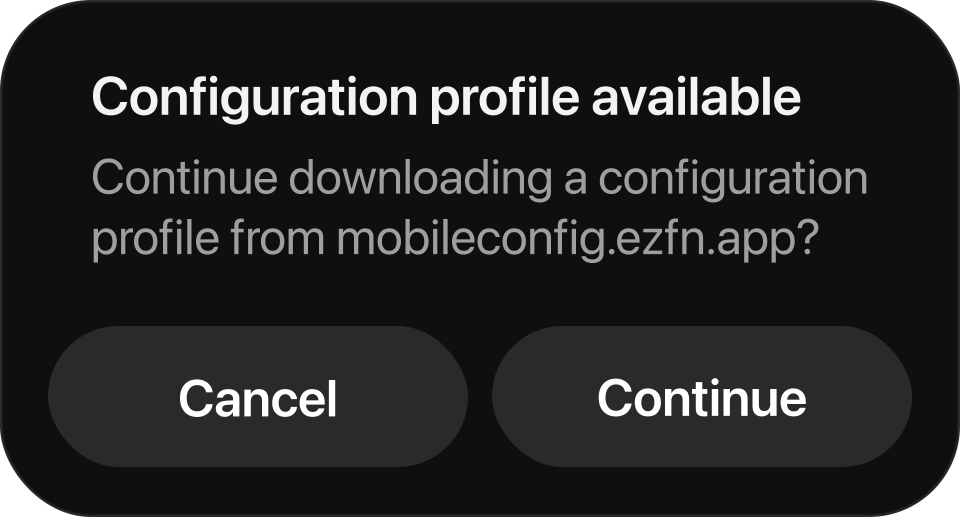
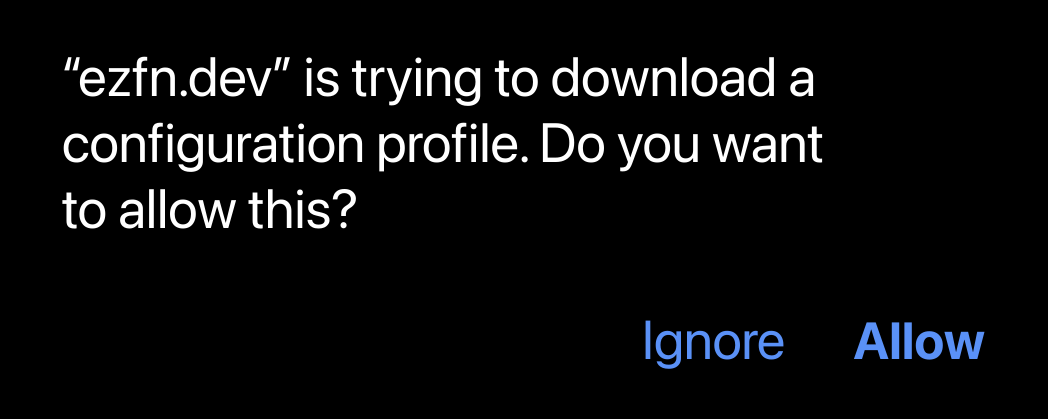
Open Settings
Open the Settings app — a new “Profile Downloaded” entry appears near the top. Tap it. (Can’t see it? Go to General → VPN & Device Management.)
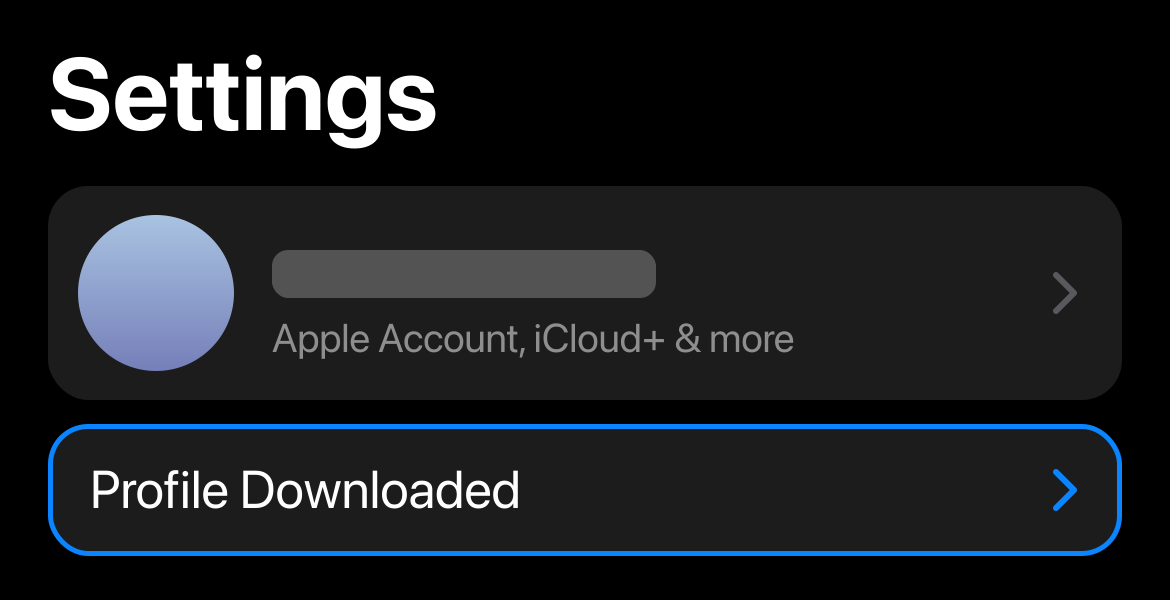
Select the EZFN profile
Tap the EZFN profile under “Downloaded Profile”.
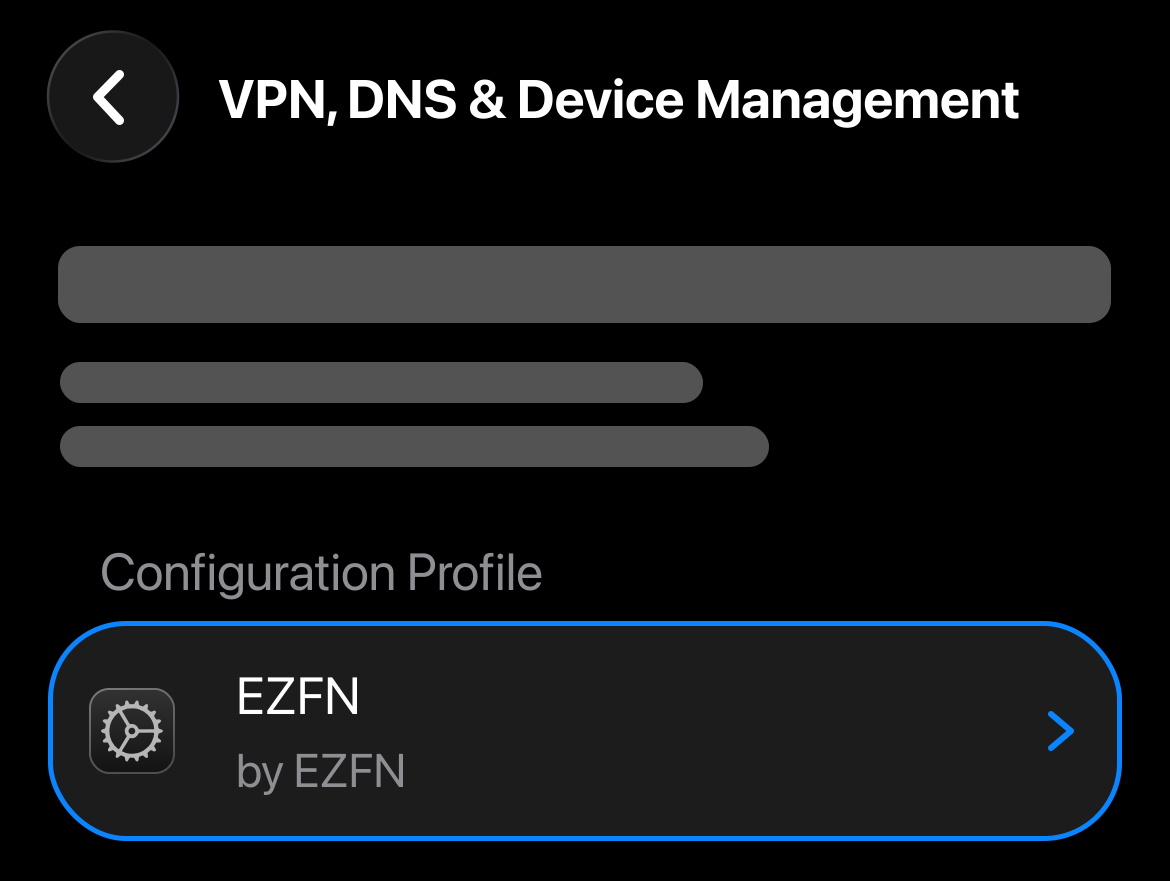
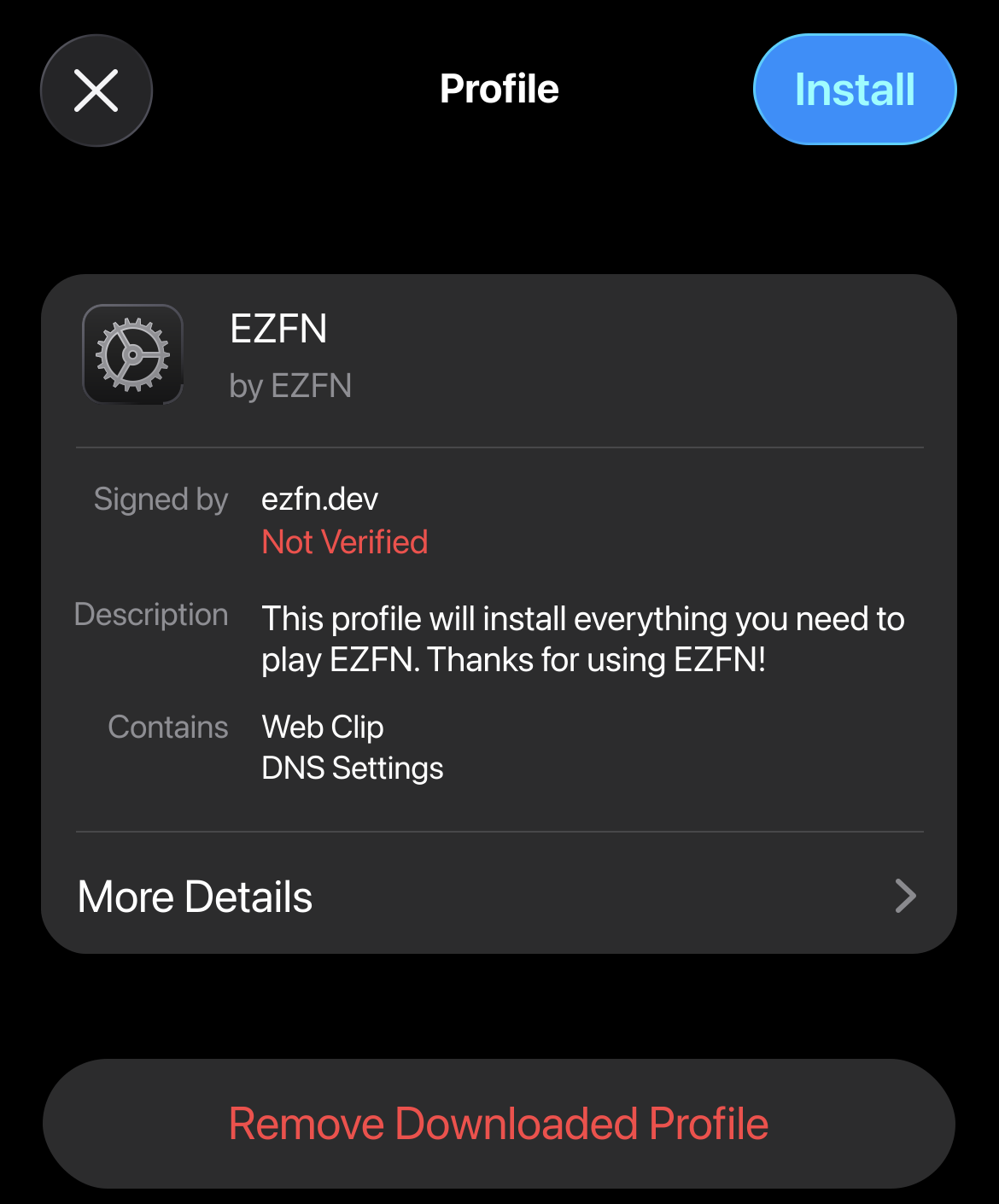
Tap Install
Tap “Install” in the top-right corner. Enter your passcode if iOS asks for it.
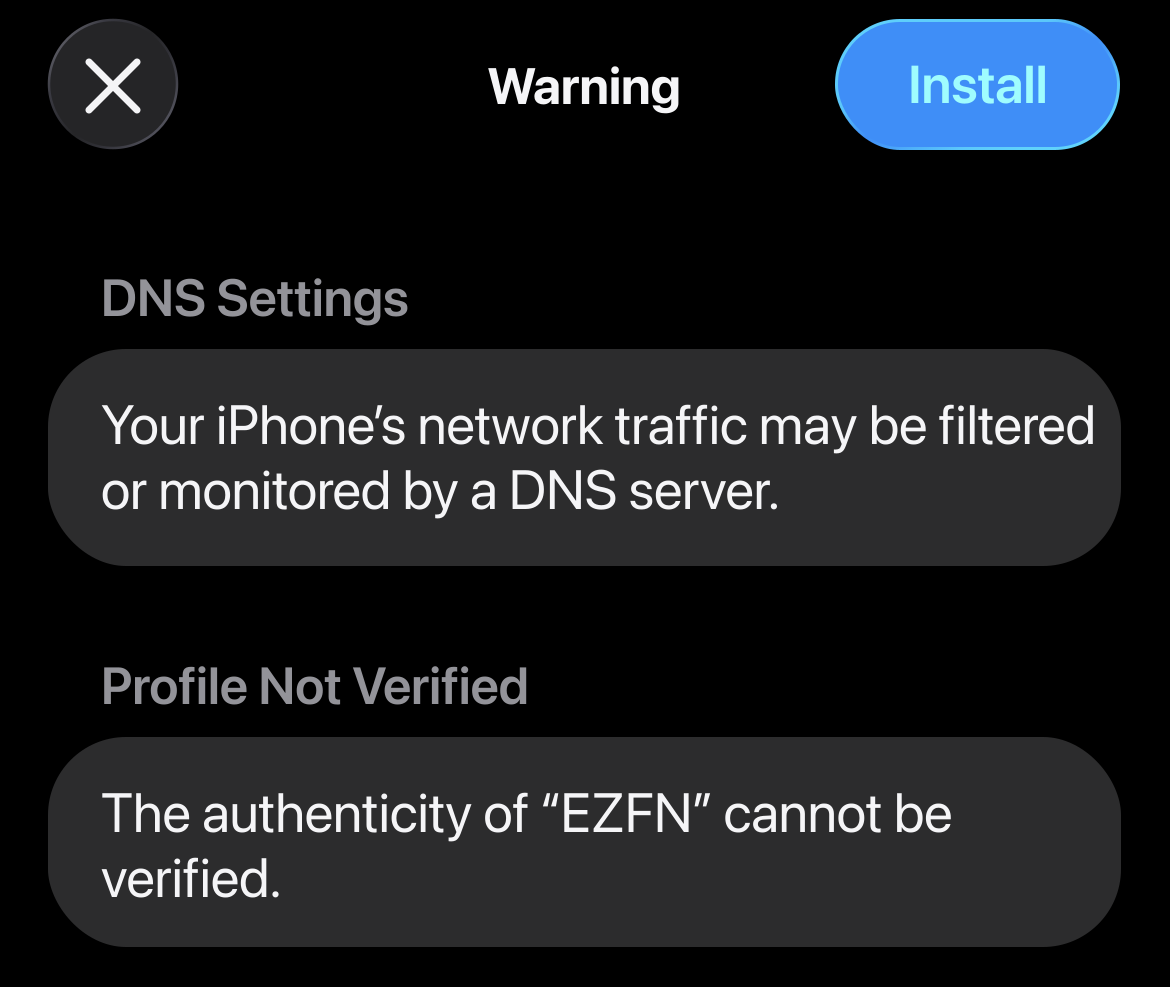
Confirm the warning
iOS shows a standard warning for every profile — nothing to worry about. Tap “Install” again in the top-right.
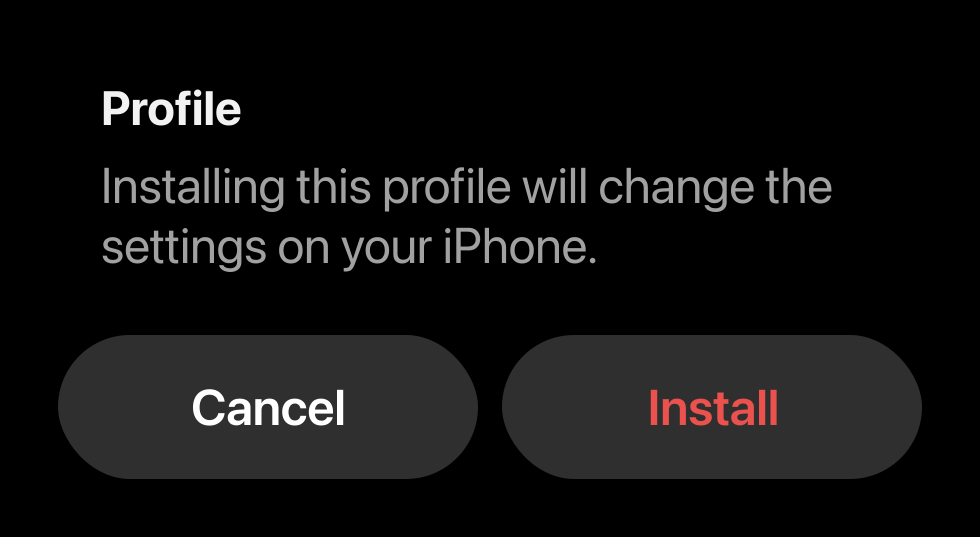
Finish the installation
Tap “Install” one last time when the confirmation appears at the bottom. Done!
Part 2 — Download Fortnite & play
Open EZFN from your Home Screen
You’ll find a new EZFN icon on your Home Screen. Open it.
Tap Download and pick a build
Tap “Download”, then one of the numbered download buttons. Apple keeps revoking certificates, so we keep several signed builds ready — if one fails, just try the next. Tip: allow push notifications there and we’ll tell you the moment a fresh build goes live.
Confirm the install
iOS asks for permission to install the app — tap “Install”, then wait until the Fortnite icon on your Home Screen finishes loading.
Open Fortnite once
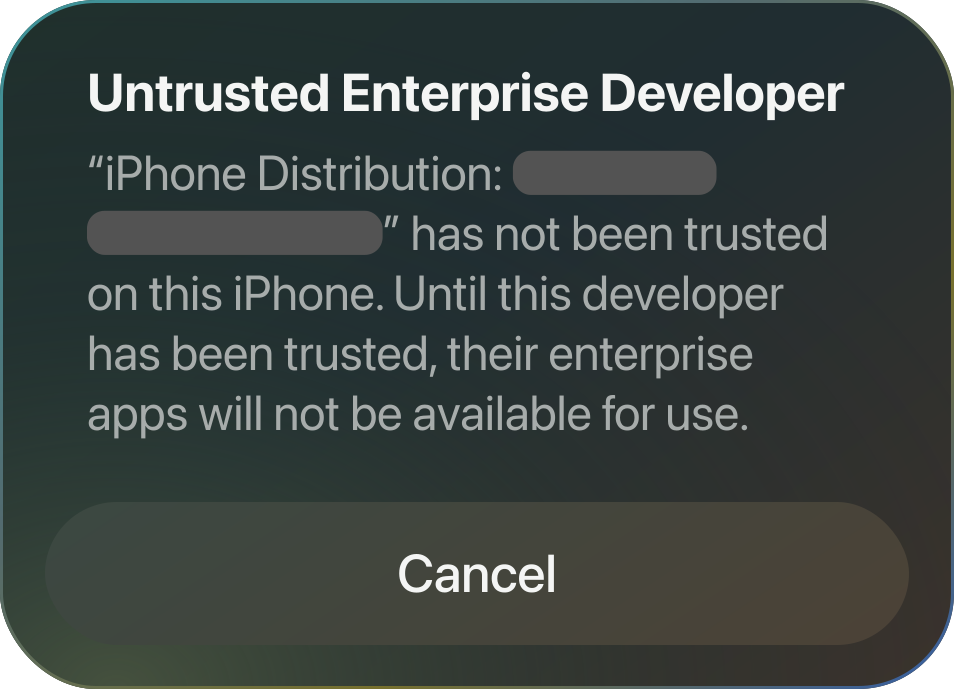
When Fortnite finishes installing, open it. If iOS shows “Untrusted Enterprise Developer,” tap Cancel. This is expected — the certificate just needs your approval.
Open Device Management
- Settings
- General
- VPN & Device Management
Under Enterprise App, tap the developer used to sign Fortnite.
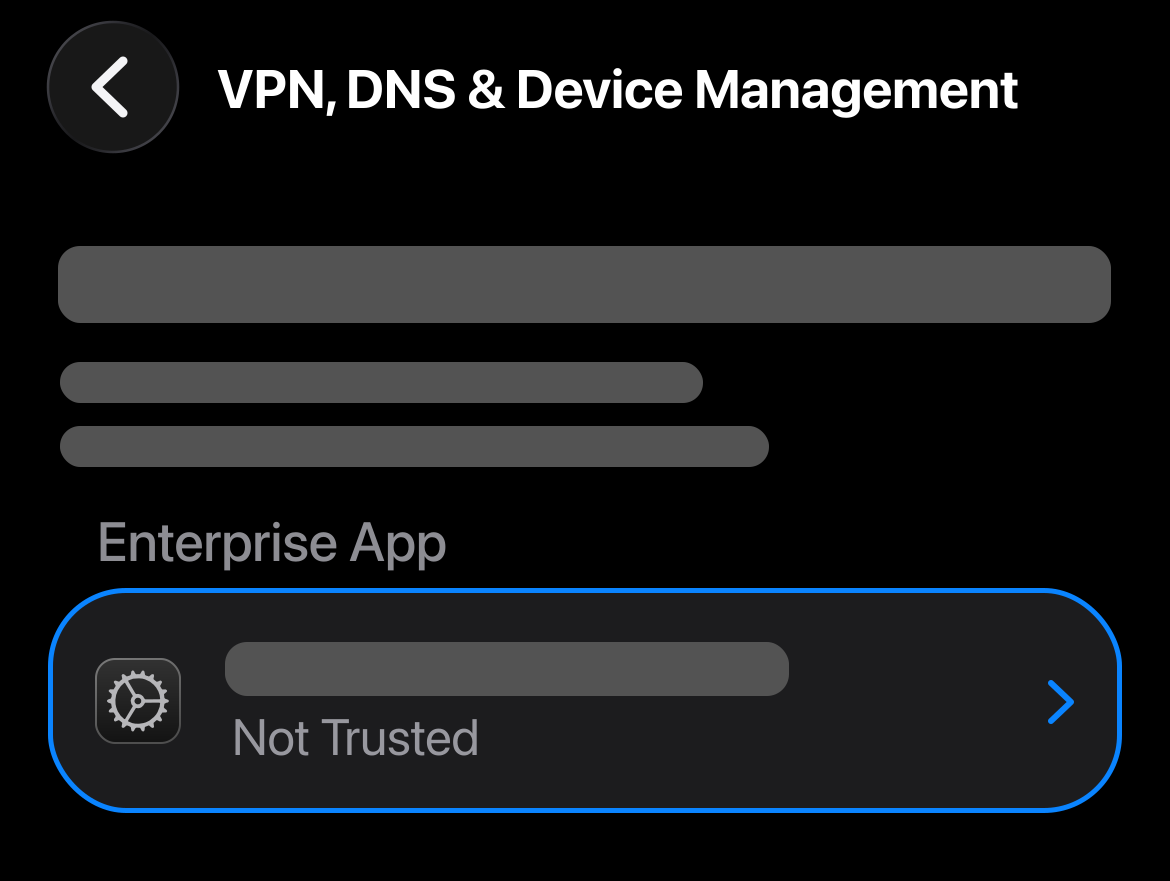
Trust the developer
Tap “Trust [developer name].” The name comes from your certificate, so it may differ from the screenshot.
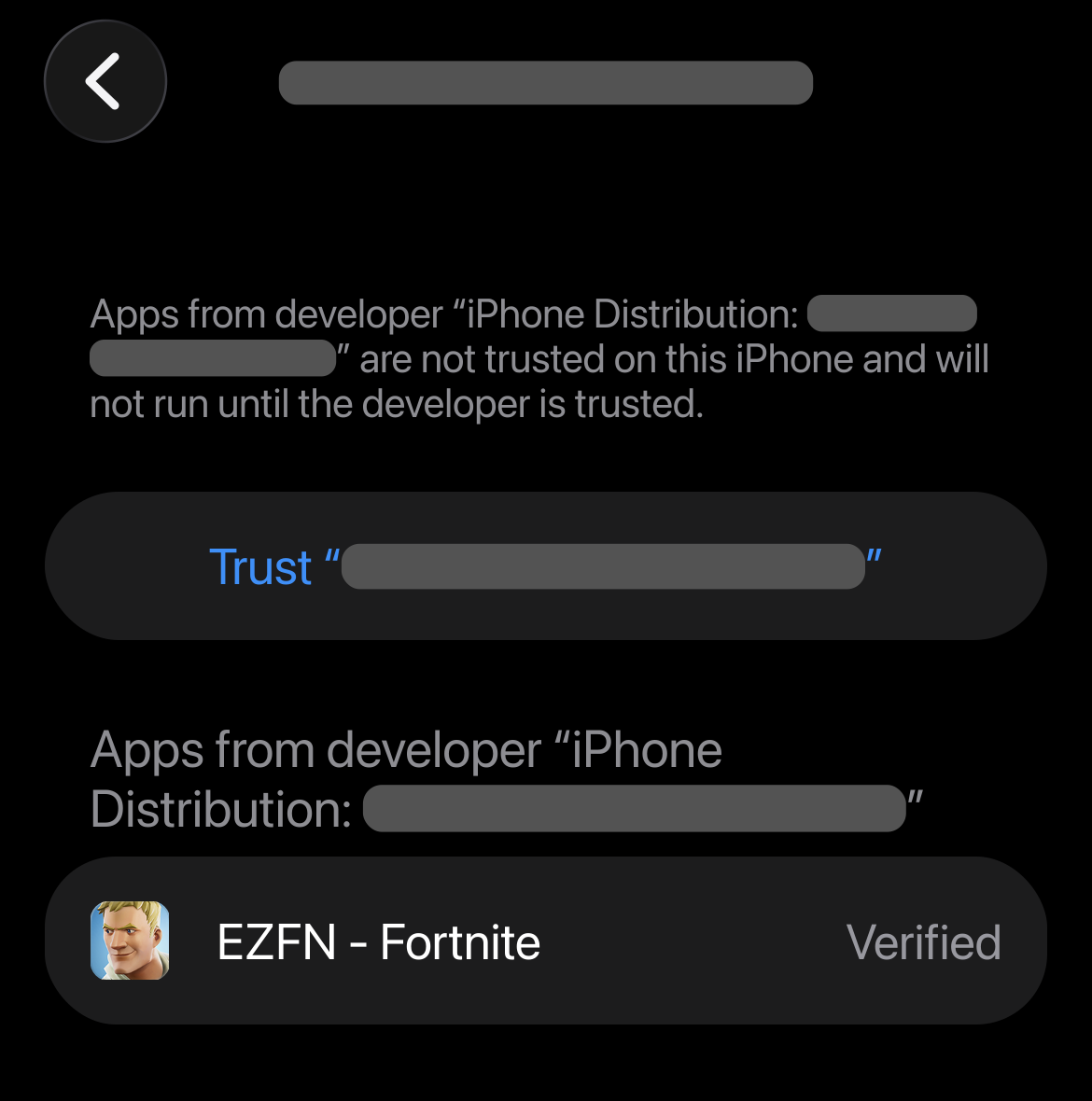
Allow the apps and restart
Tap “Allow & Restart” in the confirmation. Your iPhone restarts to apply the trust; when it is back on, open Fortnite again.
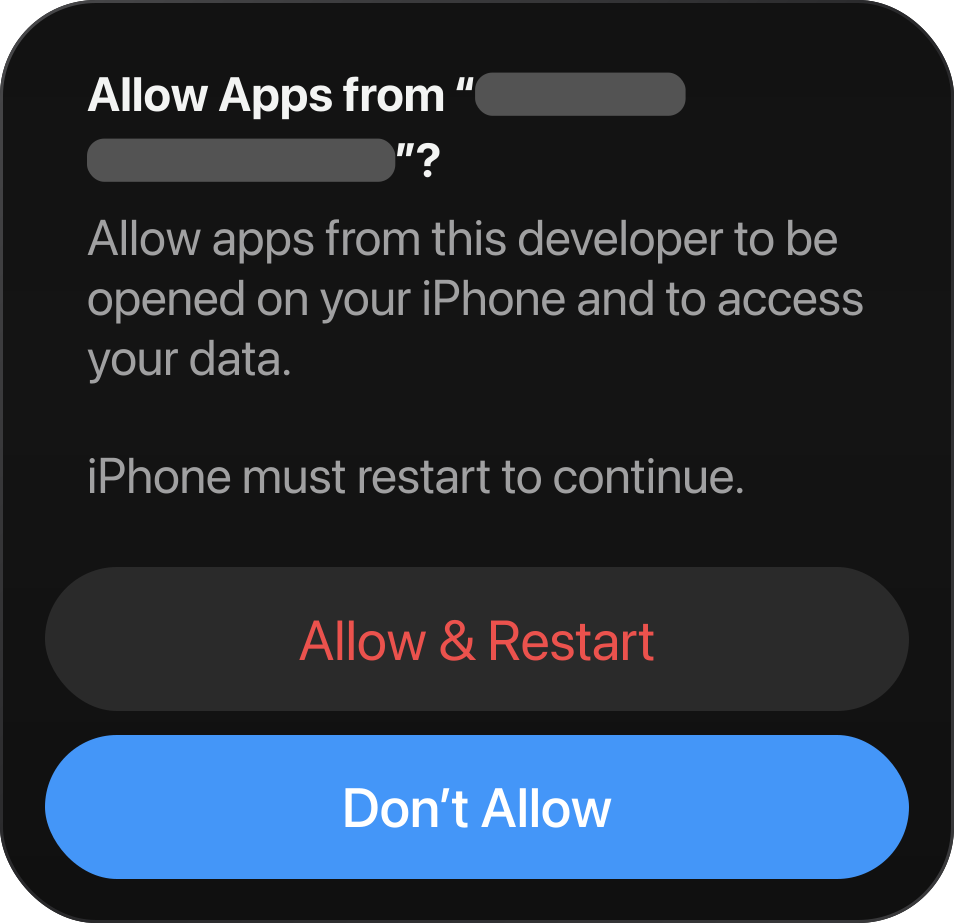
Open Fortnite and play
Open “EZFN - Fortnite” from your Home Screen, log in and drop straight into Chapter 2 Season 2.
iOS Help
No profile prompt appeared?
Make sure you're in Safari or Chrome — other browsers and in-app browsers (like Discord's) can't download profiles. Re-tap the download button, then check Settings for the “Profile Downloaded” entry near the top.
Don’t see any downloads in the app?
Scroll down inside the EZFN app and check the known issues, or join our Discord — new downloads are announced there as soon as they go live.
Installed, but Fortnite won’t open anymore?
The certificate it was signed with was probably revoked by Apple. Delete the app, open the EZFN launcher and install a different numbered download — and allow push notifications so you know right away when fresh builds land.
Video Tutorial
Prefer watching? Follow along with the full video walkthrough.
Download the Fortnite IPA
Download the EZFN Fortnite build (about 150 MB) — the same signed Chapter 2 Season 2 client we ship everywhere.
Download Fortnite IPAInstall it with your favorite tool
Sideload the IPA however you prefer — Sideloadly or AltStore with a PC, or a signing app like ESign if you own a certificate. Stuck? Our Discord has a guide for every tool.
Open Fortnite once
When Fortnite finishes installing, open it. If iOS shows “Untrusted Enterprise Developer,” tap Cancel. This is expected — the certificate just needs your approval.
Open Device Management
- Settings
- General
- VPN & Device Management
Under Enterprise App, tap the developer used to sign Fortnite.
Trust the developer
Tap “Trust [developer name].” The name comes from your certificate, so it may differ from the screenshot.
Allow the apps and restart
Tap “Allow & Restart” in the confirmation. Your iPhone restarts to apply the trust; when it is back on, open Fortnite again.
Optional: get notified about updates
Add the EZFN launcher to your Home Screen too — when a new build or certificate goes live, you’ll know right away and can reinstall in one tap. Takes 30 seconds, no account needed.
Add EZFN to Home Screen
Sideloading Help
“Unable to Verify App” or Fortnite won’t open?
Open Settings → General → VPN & Device Management and trust your Apple ID. If the app expired (free Apple IDs sign for 7 days), re-sideload the IPA to renew it.
The IPA won’t import or the signer rejects it?
Make sure the download finished completely (about 150 MB) and you’re importing the .ipa file from Files. Still stuck? Our Discord can help with every common signer.