Download the EZFN Launcher
Click the download button below — you'll get EZFN-OGFN-Setup.msi (about 8 MB). When it finishes, the download appears next to your browser's address bar, exactly as in the picture. Click the file to open it.
Download for Windows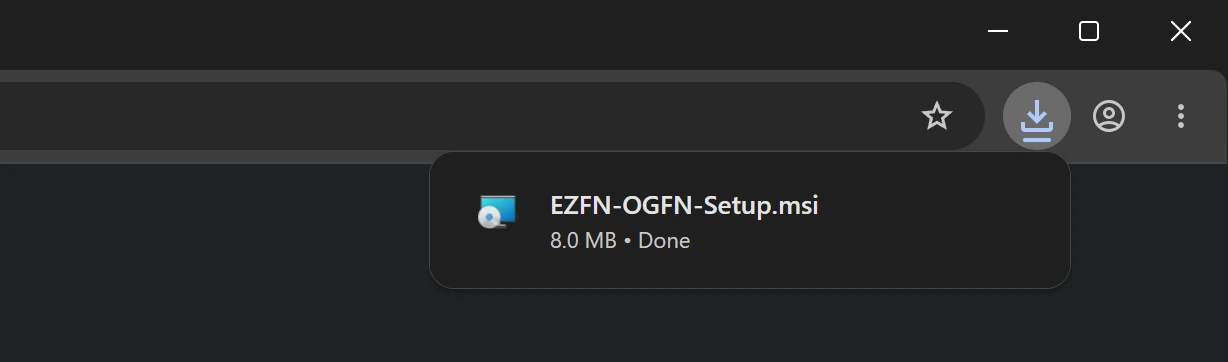
Get past Windows SmartScreen
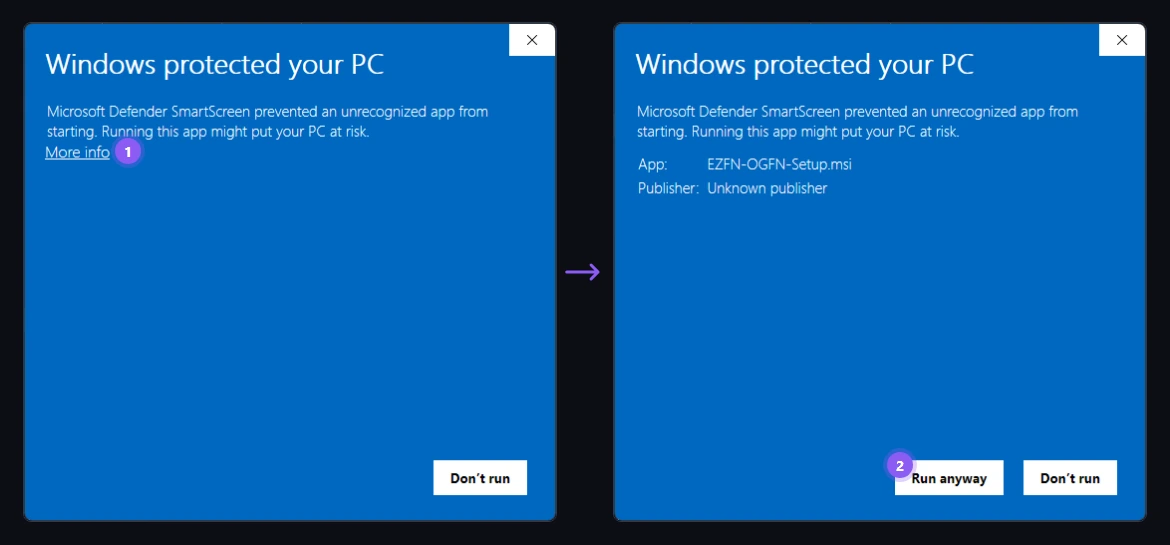
Windows sometimes shows “Windows protected your PC” for independent apps like EZFN. Click “More info” (1), then “Run anyway” (2). Our installer is published on VirusTotal, so you can verify it yourself.
Install the launcher
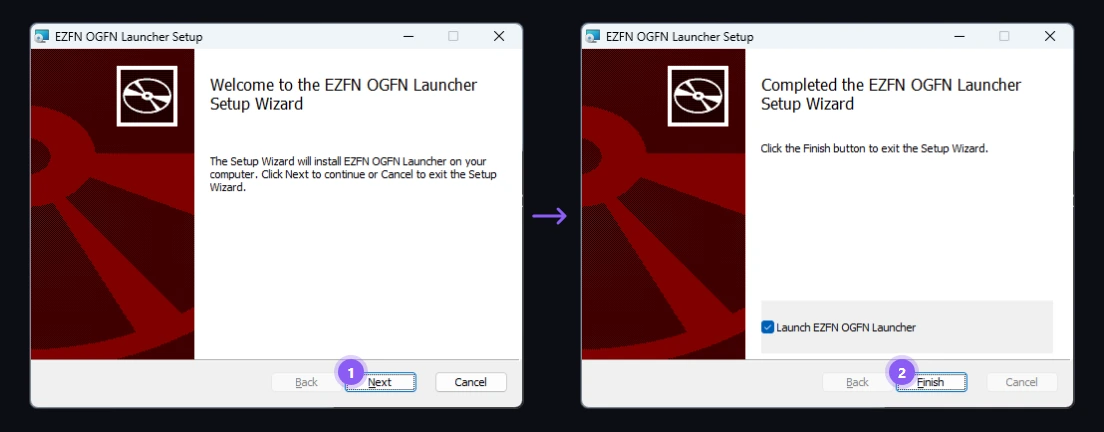
Follow the setup wizard: click “Next” (1) and let it install. On the last page keep “Launch EZFN OGFN Launcher” ticked and click “Finish” (2) — the launcher starts right away. If Windows asks for permission, choose Yes.
Choose your language
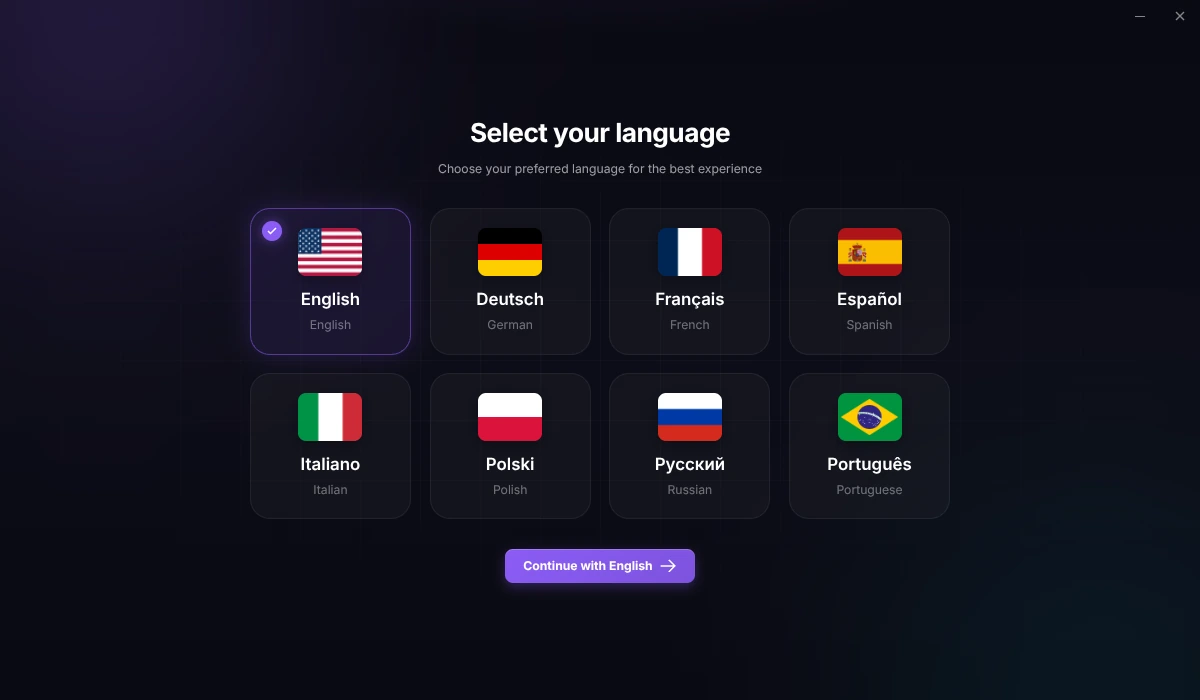
On first start, pick your language and click “Continue with English” (the button always shows the language you picked).
Get started
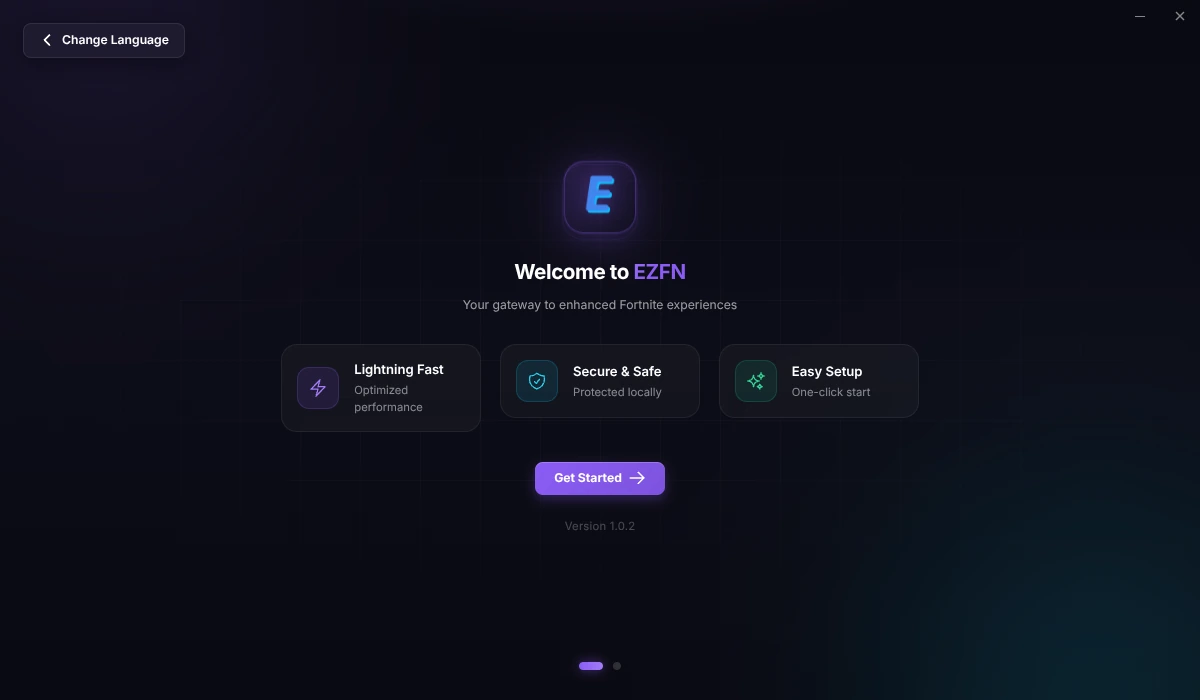
A short welcome screen follows. Click “Get Started”.
Sign in with EZFN
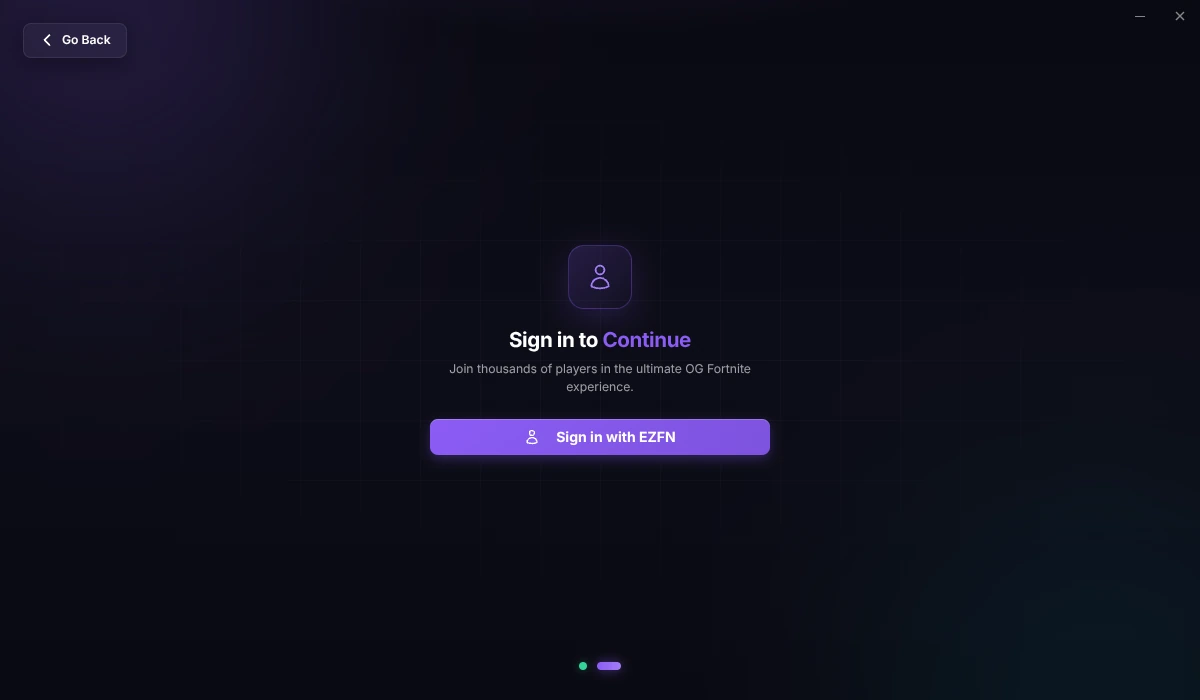
Click “Sign in with EZFN”. Your browser opens the EZFN sign-in page — log in there, or create your free account in a minute. One account works on all your devices.
Finish signing in — in your browser
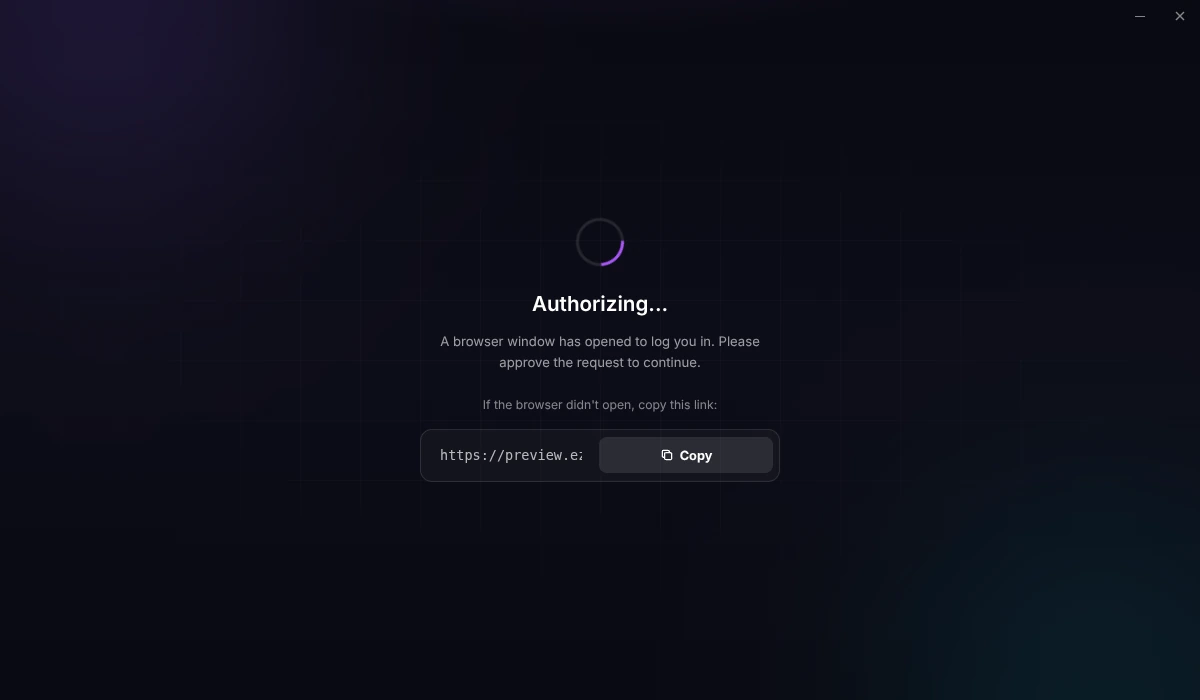
Complete the sign-in in the browser tab that just opened. When the browser asks to open “EZFN OGFN Launcher”, confirm it — you'll land back in the launcher, already logged in. If nothing opens, copy the link shown in the launcher into your browser.
Pick your Fortnite version
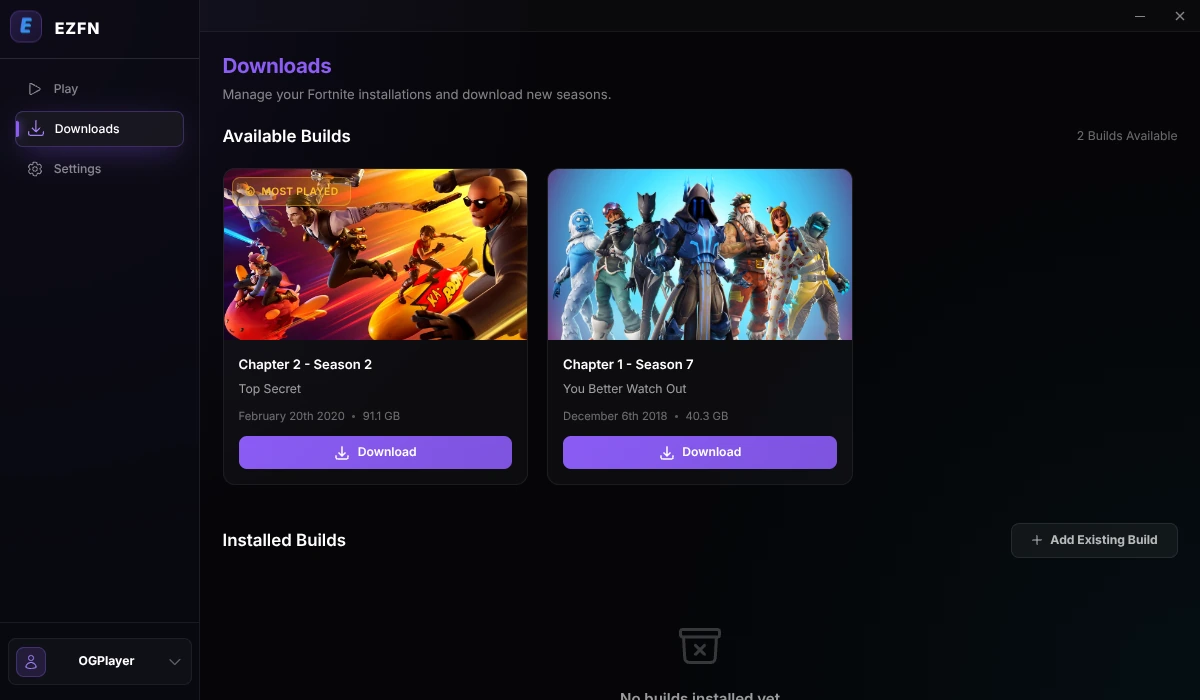
In the sidebar, open “Downloads” and click “Download” on Chapter 2 – Season 2 (v12.61) — the season everyone's playing.
Start the download
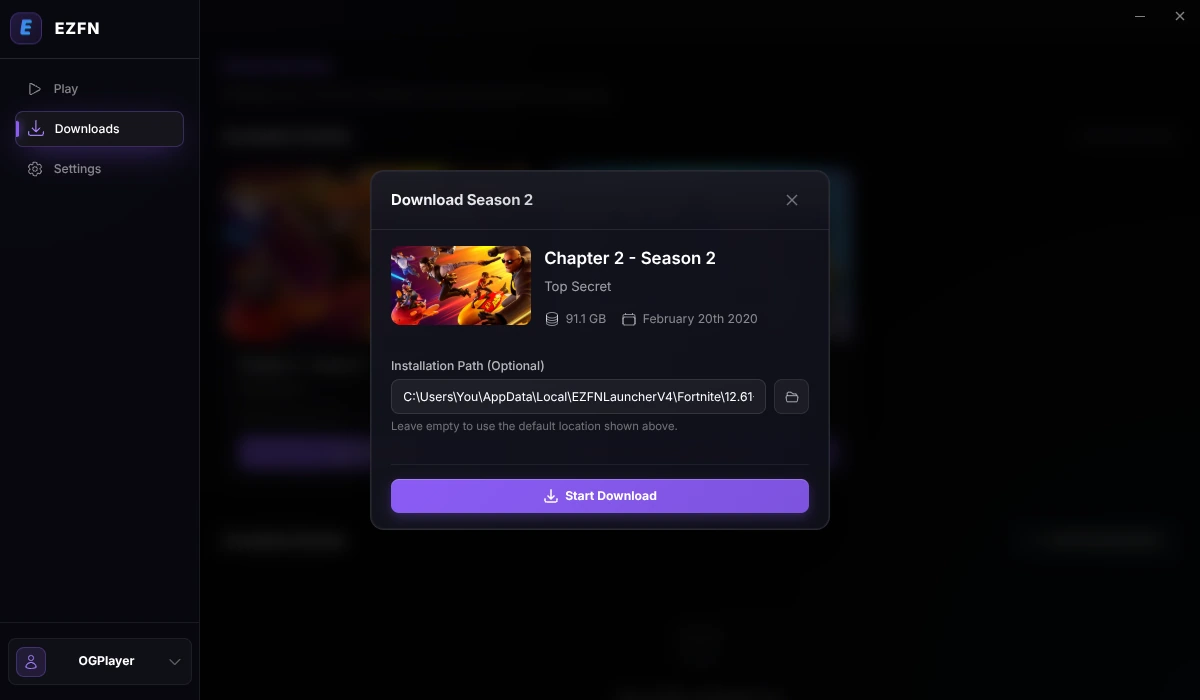
Keep the suggested location, or click the folder icon to install on another drive. Then hit “Start Download” — make sure you have about 92 GB of free space.
Wait for it to finish
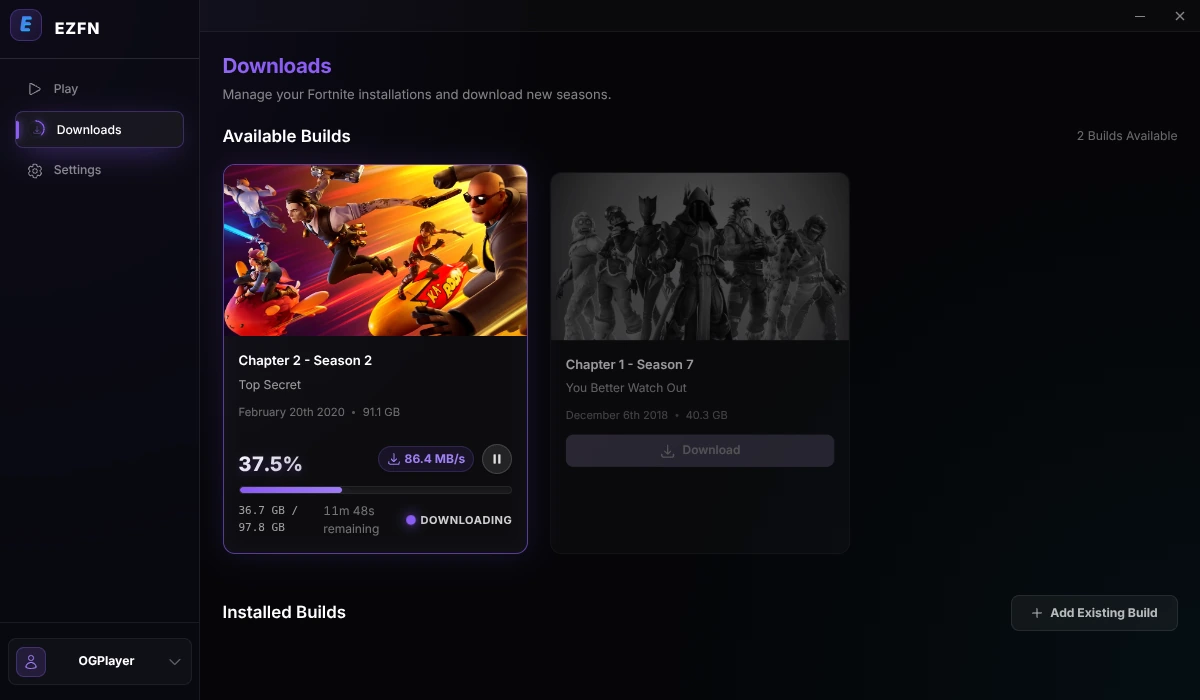
The card shows progress, speed and time remaining. Depending on your connection this can take a while — grab a snack, the launcher keeps working in the background.
Hit Launch — Victory Royale!
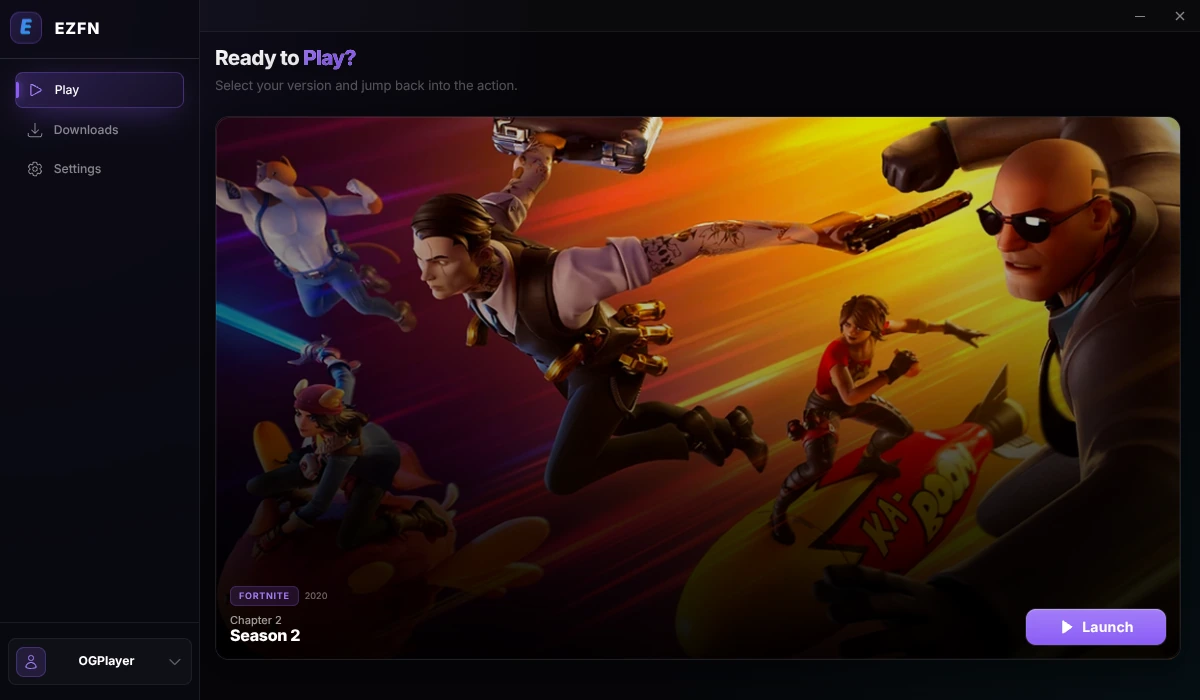
When the download completes, switch to the “Play” tab: your Chapter 2 Season 2 is ready. Click “Launch” and enjoy OG Fortnite — exactly as you remember it.
Windows Help
My browser or antivirus flags the download as a virus
EZFN is not a virus. Because we replace some Fortnite files, antivirus tools sometimes flag us — our installer is scanned and published on VirusTotal so you can verify it yourself. In your browser choose Keep → Keep anyway (Ctrl+J opens the downloads), and add the EZFN folder to your Windows Security exclusions if it keeps getting blocked.
The game crashes or shows an Unreal Engine error
That usually means corrupted game files. In the launcher, open the Downloads tab and use the verify button next to your installed build — it checks every file and repairs only what's broken.
No sound, or unsure which DirectX to use?
We recommend DirectX 11 for maximum stability (DirectX 12 for newer RTX/Radeon cards). If you can't hear audio even in the lobby, install Microsoft's DirectX Web setup. If game audio is missing in matches, turn off “Visualize Sound Effects” in the audio settings.