Which device are you using?
Showing the steps for Steam Deck.
Download the EZFN Launcher
Download EZFN-OGFN-Launcher.AppImage using the button below. Once complete, the file appears in your browser’s downloads panel. The screenshot shows Firefox.
Download for Linux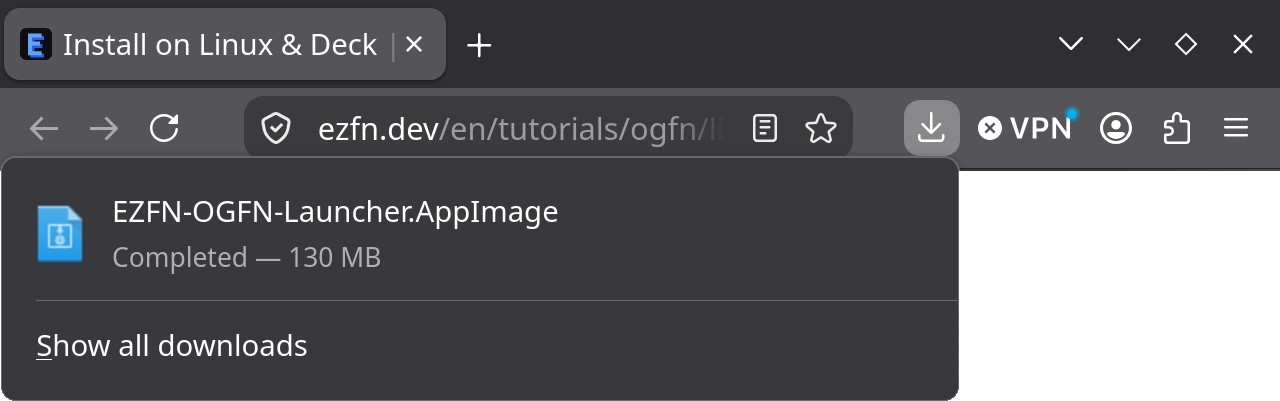
Make the file executable
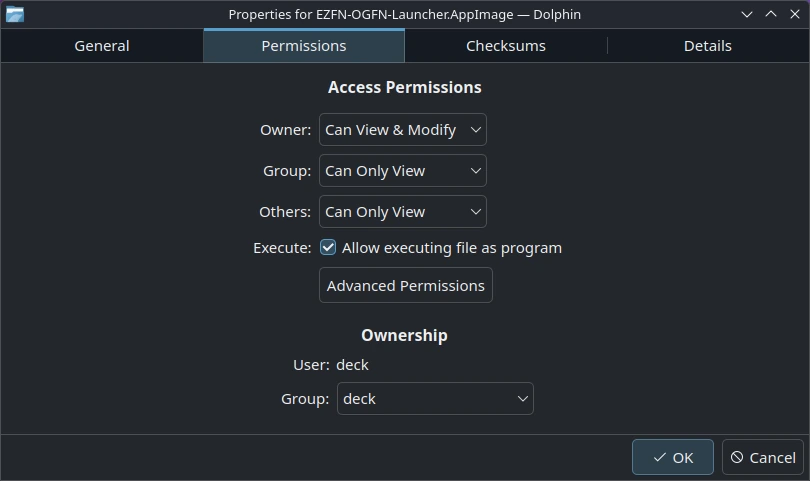
Open your Downloads folder, right-click the AppImage and choose “Properties”. On the “Permissions” tab tick “Allow executing file as program” (KDE/Dolphin shown — in GNOME Files it's “Executable as Program”) and click OK. Alternatively, open a terminal in this folder and run chmod +x EZFN-OGFN-Launcher.AppImage.
Open the launcher
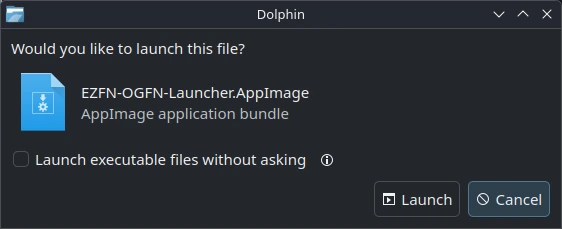
Double-click the AppImage and confirm if prompted. The launcher runs directly from this file, so keep it in a fixed location. If you move it, open it once from the new location.
Choose your language
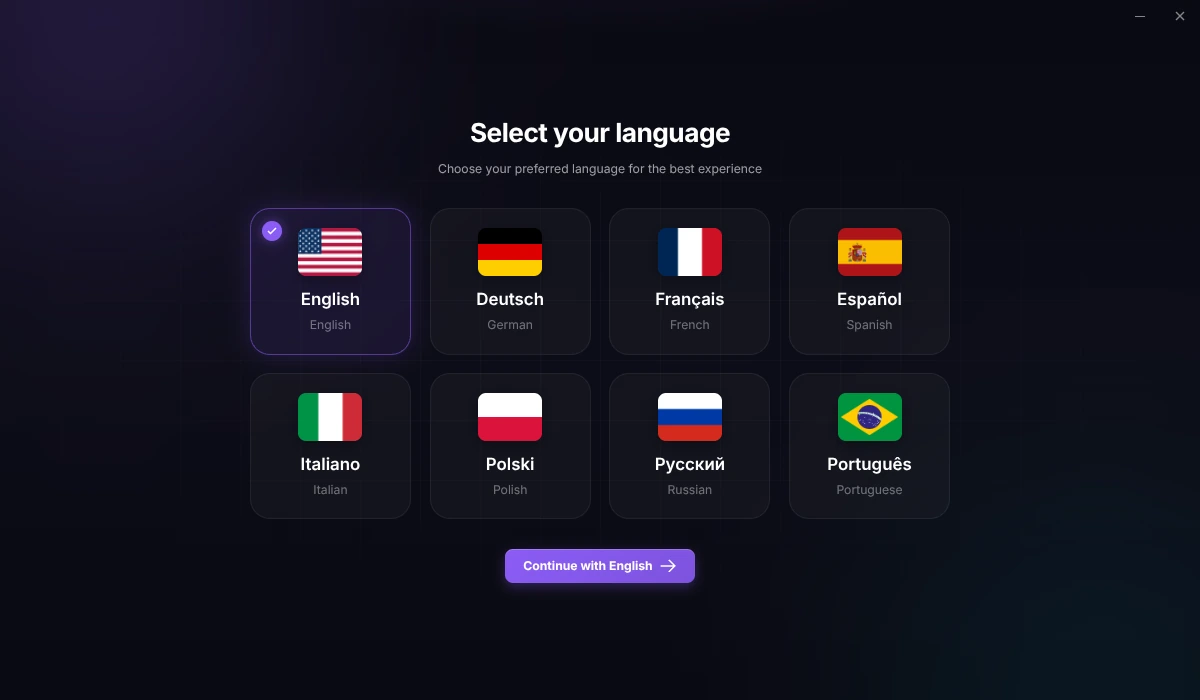
Choose a language on the first launch, then click the continue button below it.
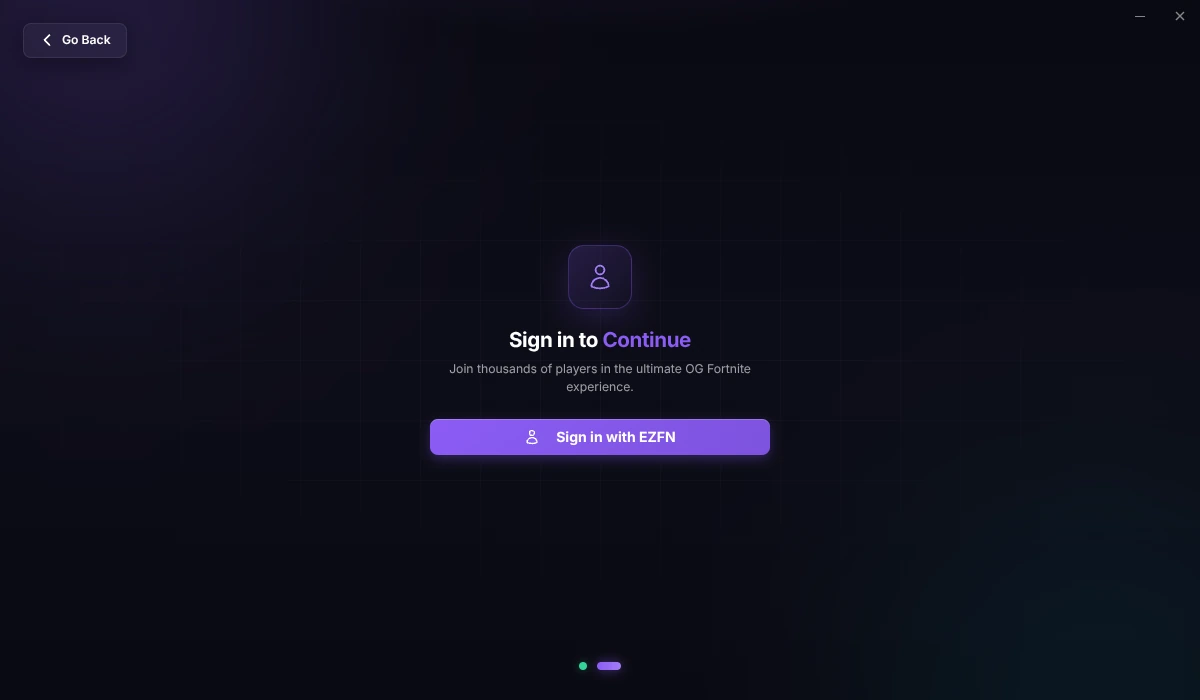
Sign in with EZFN
Click “Sign in with EZFN” to open the sign-in page in your browser. Sign in to your EZFN account or create a free account.
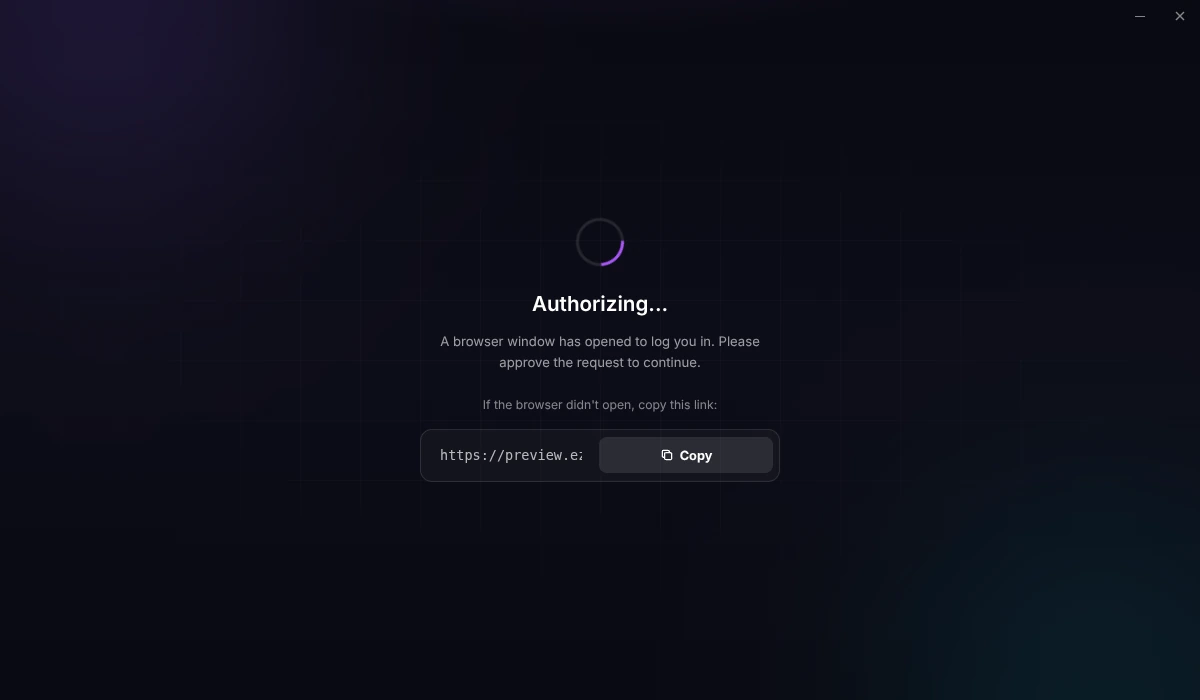
Finish signing in through your browser
Sign in in the browser tab that opened. If your browser asks to open “EZFN OGFN Launcher”, allow it to return to the launcher. If the browser does not open, copy the link from the launcher and paste it into your browser’s address bar.
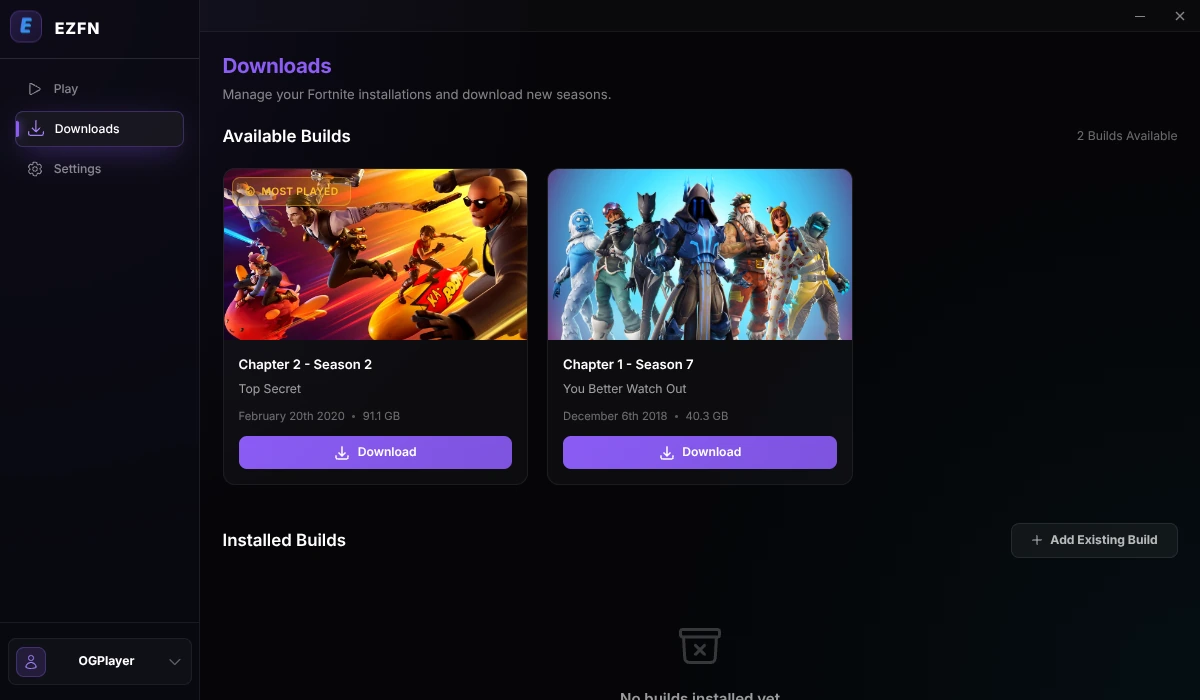
Choose your Fortnite version
In the sidebar, open “Downloads” and click “Download” on Chapter 2 – Season 2 (v12.61).
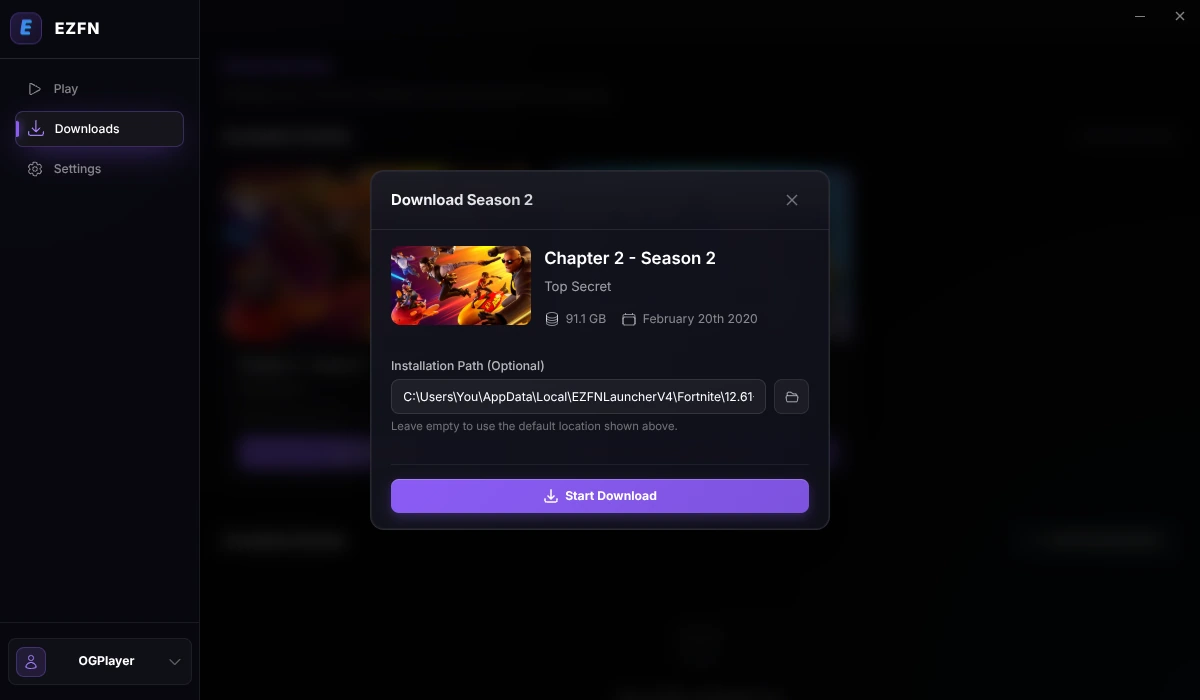
Start the download
Choose a location with about 92 GB of free space. Click the folder icon to change the suggested path or select a microSD card on Steam Deck. Then click “Start Download”.
Wait for the download to finish
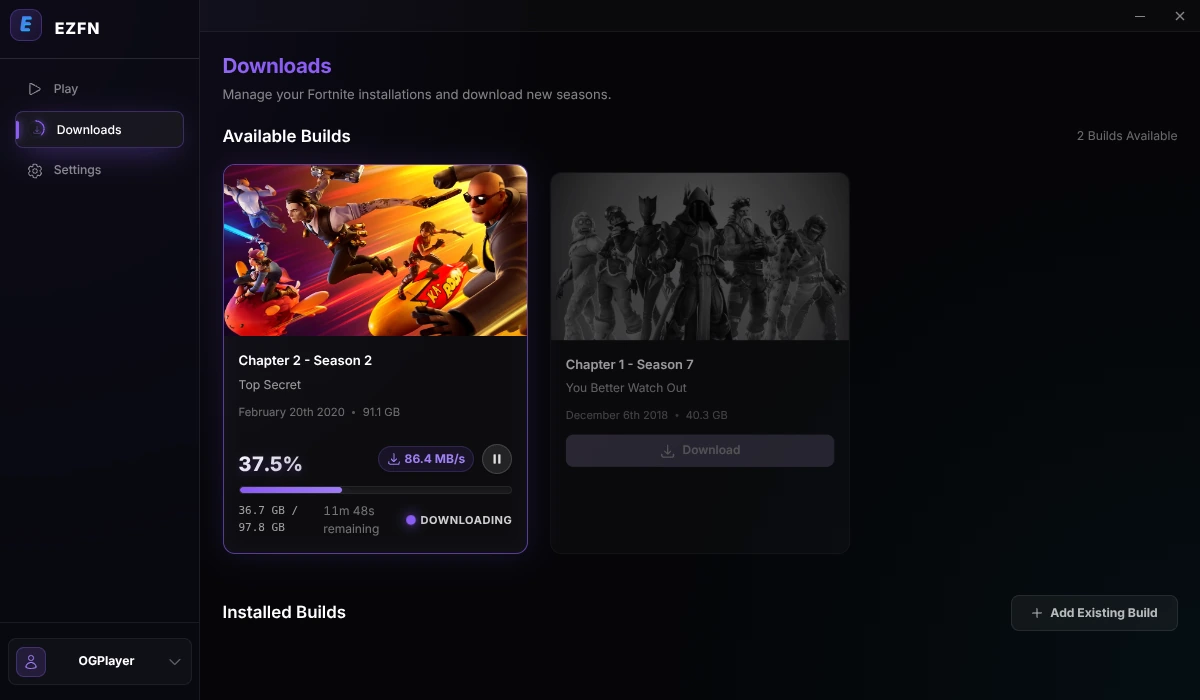
The download card shows progress, speed and estimated time remaining. Keep the launcher open until the download finishes.
Launch the game
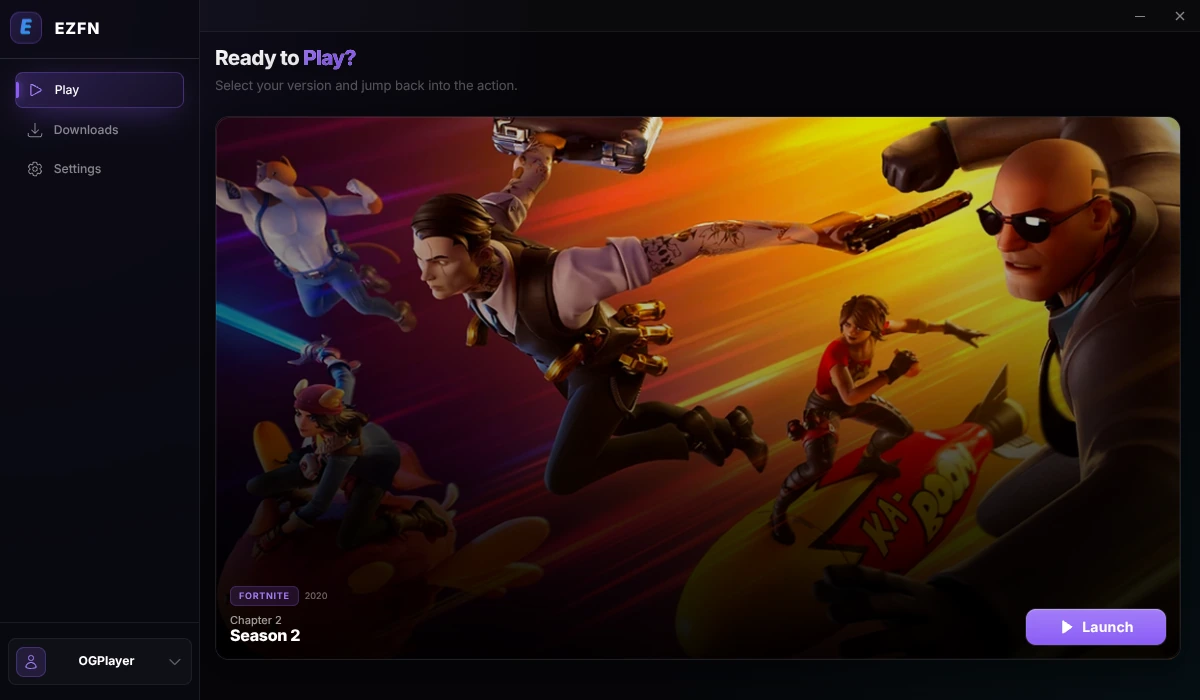
When the download finishes, open the “Play” tab and click “Launch” for Chapter 2 Season 2. The first launch may take a few minutes.
Linux Help
The AppImage does not open
Check the file permissions and tick “Allow executing file as program”. If it still won't start, open a terminal in that folder and run ./EZFN-OGFN-Launcher.AppImage to see the error. On Steam Deck, make sure you're in Desktop Mode.
Do I need Steam, Proton or Wine?
You do not need to install Proton or Wine manually or add the launcher to Steam. The launcher sets up the components it needs to run the game.
The browser didn't open when I clicked Sign in
Click “Copy” next to the sign-in link in the launcher and paste it into your browser’s address bar. After signing in, allow the browser to open EZFN OGFN Launcher if prompted. If you are not returned to the launcher, close it, reopen the AppImage and try signing in again.
Can I install the game on another drive?
Chapter 2 Season 2 needs about 92 GB of free space. In the download dialog, click the folder icon to choose another location. On Steam Deck, you can select a microSD card under /run/media. Keep the launcher on the internal drive.
Switch to Desktop Mode
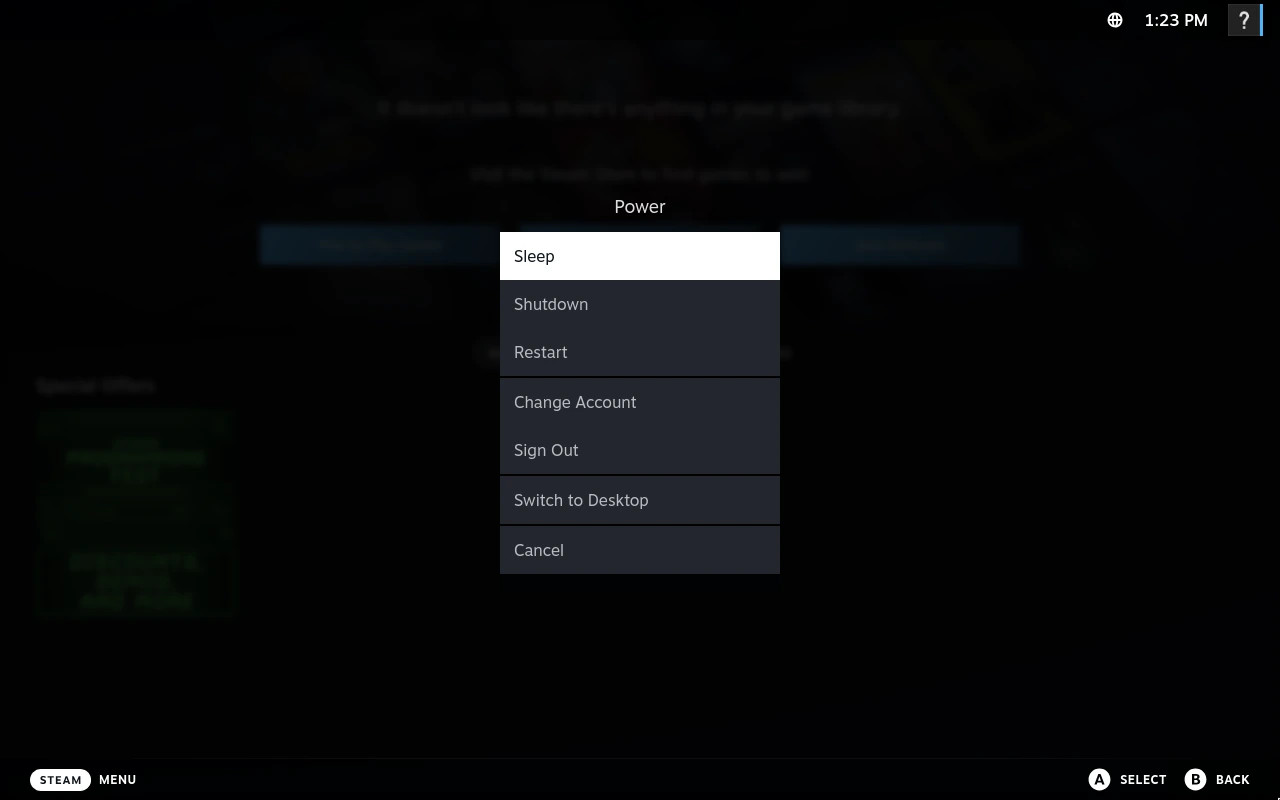
Use Desktop Mode to set up the launcher. Press the Steam button, open “Power” and choose “Switch to Desktop”. You can also open this menu by holding the power button. Once the desktop appears, open this guide in your browser and continue with the next step.
Download the EZFN Launcher
Download EZFN-OGFN-Launcher.AppImage using the button below. Once complete, the file appears in Firefox’s downloads panel.
Download for LinuxMake the file executable
Open your Downloads folder, right-click the AppImage and choose “Properties”. On the “Permissions” tab tick “Allow executing file as program” and click OK. Alternatively, open a terminal in this folder and run chmod +x EZFN-OGFN-Launcher.AppImage.
Open the launcher
Double-click the AppImage and confirm if prompted. The launcher runs directly from this file, so keep it in a fixed location. If you move it, open it once from the new location.
Choose your language
Choose a language on the first launch, then click the continue button below it.
Sign in with EZFN
Click “Sign in with EZFN” to open the sign-in page in your browser. Sign in to your EZFN account or create a free account.
Finish signing in through your browser
Sign in in the browser tab that opened. If your browser asks to open “EZFN OGFN Launcher”, allow it to return to the launcher. If the browser does not open, copy the link from the launcher and paste it into your browser’s address bar.
Choose your Fortnite version
In the sidebar, open “Downloads” and click “Download” on Chapter 2 – Season 2 (v12.61).
Start the download
Choose a location with about 92 GB of free space. Click the folder icon to change the suggested path or select a microSD card on Steam Deck. Then click “Start Download”.
Wait for the download to finish
The download card shows progress, speed and estimated time remaining. Keep the launcher open until the download finishes.
Launch the game
When the download finishes, open the “Play” tab and click “Launch” for Chapter 2 Season 2. The first launch may take a few minutes.
Linux Help
The AppImage does not open
Check the file permissions and tick “Allow executing file as program”. If it still won't start, open a terminal in that folder and run ./EZFN-OGFN-Launcher.AppImage to see the error. On Steam Deck, make sure you're in Desktop Mode.
Do I need Steam, Proton or Wine?
You do not need to install Proton or Wine manually or add the launcher to Steam. The launcher sets up the components it needs to run the game.
The browser didn't open when I clicked Sign in
Click “Copy” next to the sign-in link in the launcher and paste it into your browser’s address bar. After signing in, allow the browser to open EZFN OGFN Launcher if prompted. If you are not returned to the launcher, close it, reopen the AppImage and try signing in again.
Can I install the game on another drive?
Chapter 2 Season 2 needs about 92 GB of free space. In the download dialog, click the folder icon to choose another location. On Steam Deck, you can select a microSD card under /run/media. Keep the launcher on the internal drive.